The Best Laptop Stands and Docks for a Home Office
Two 4K60 panels use about 25 of Thunderbolt's shared 40 Gbps, and no dock adds a display your chip refuses to drive. Five picks with the math.
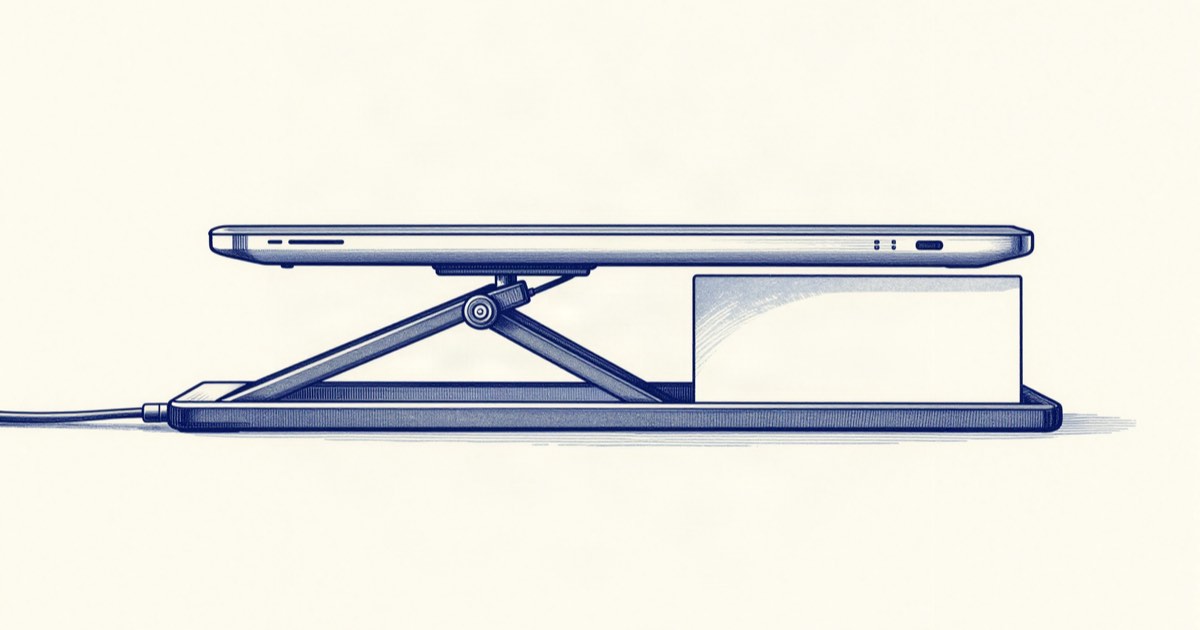
One 3840x2160 display at 60 Hz and 8 bits per colour, using CVT-R2 reduced blanking, is about 12.54 Gbps of video. Thunderbolt 3 and Thunderbolt 4 both put 40 Gbps on the cable. That looks like a three-monitor budget, and it is not: the 40 Gbps is a shared pipe, the PCIe tunnel inside it is generally capped near 32 Gbps, and your laptop’s own display controller holds a veto that no dock can override.
We read spec sheets, manuals and driver release notes for this guide. We did not put these units on a desk, probe chassis temperatures, or benchmark sustained NVMe throughput through a hub. Where that gap matters, it is marked.
Count bandwidth before you count ports
Dock listings compete on port count. An 18-port dock does not give you 18 independent lanes — it gives you one Thunderbolt controller multiplexing a single 40 Gbps link into a USB tree, a PCIe tree, and DisplayPort tunnels. Two 4K60 panels take roughly 25 Gbps of that before a single USB drive moves a byte.
The test that matters is your peak minute, not your idle one. If you keep a 2.5 GbE uplink busy, run an external SSD for builds, and drive two 4K panels at the same time, you will find the ceiling. If your dock mostly carries a keyboard, a webcam and one monitor, almost any Thunderbolt 4 dock is over-specified for you, and you should buy on port layout and charging wattage instead.
Thunderbolt 4, ratified in 2020, raised the floor: hosts must support two 4K60 displays, where Thunderbolt 3 required only one. Thunderbolt 5 (announced September 2023, shipping in Macs from the M4 Pro and M4 Max in November 2024) moves to 80 Gbps bidirectional with a 120 Gbps asymmetric mode for displays. Docks for it exist and cost roughly double a Thunderbolt 4 equivalent. Nothing in a normal two-monitor office setup is starved at 40 Gbps today.
Your laptop decides how many displays, not the dock
This is the most common reason a dock gets returned. Base Apple Silicon chips — M1, M2 and M3 in the MacBook Air and 13-inch Pro — drive one external display. macOS Sonoma 14.4 (March 2024) added a second external display on the M3 MacBook Air, but only with the lid closed. The M4 Air lifted that restriction. No dock changes any of this: a Thunderbolt dock passes DisplayPort through, it does not synthesise it. Check your exact model on Apple’s tech-specs page before you buy anything.
The escape hatch is DisplayLink, which is not a video protocol at all. It compresses the framebuffer on the host CPU and ships it as ordinary USB bulk data, so the display controller is never consulted. That costs CPU time, adds latency, and looks visibly worse on video and anything that scrolls fast. For a second panel holding logs, chat and documentation, it is fine. For colour work or 120 Hz, it is not. On macOS it needs the DisplayLink Manager app plus a screen-recording permission grant, which is a recurring source of “my second monitor went black after the OS update”.
Notion
Docks ship firmware updates that change display behaviour, and port mapping is rarely printed on the case. A one-page device note — firmware version, which port is upstream, which ports share a hub — turns the next black-screen morning into a two-minute check.
Free personal plan; paid tiers from $10/user/month
Affiliate link · We earn a commission at no cost to you.
A stand is a keyboard decision
Raising a laptop screen also raises the built-in keyboard, which is worse than where it started. A stand is therefore not a standalone purchase: budget for an external keyboard and pointing device in the same order, or your wrists end up worse off than before.
The arithmetic is simple. A desk is typically 29 inches (74 cm) high. Seated, most adults have their eyes roughly 16 to 18 inches above that surface. A 16-inch laptop open on the desk puts the top of its screen about 9 to 10 inches above it. So the gap to close is 6 to 8 inches, and a fixed riser like the mStand contributes 5.9. That lands a 16-inch machine close and leaves a 13-inch machine short — which is the whole argument for an adjustable model if you are on a small laptop or you are tall.
On cooling: any stand that lifts the chassis off a flat surface unblocks the intake vents on the underside, which is a real effect on machines that draw air from below. We did not measure it, and we would not buy a stand for thermals alone.
What we would pick, and what flips it
Default: an mStand and a CalDigit TS4, with an external keyboard. The conditions that change that answer:
- Your laptop has USB-C but not Thunderbolt. Skip every dock here and buy a USB-C hub. You cannot use the bandwidth you would be paying for.
- You need more displays than your chip supports. DisplayLink, accepting the CPU cost and the driver maintenance.
- You move between desks weekly. A folding portable stand beats a fixed aluminium block, which is heavy and does not travel.
- Your total budget is under $150. An external keyboard plus any stable riser beats a cheap dock. A bad dock drops displays under load; a cheap riser just sits there.
FAQ
Will a Thunderbolt dock let my M2 MacBook Air run two external monitors?
Is Thunderbolt 5 worth waiting for?
Does a laptop stand cause overheating?
Related reading
2026-08-12
Picking a Humidifier for a Dry Home Office in 2026
Under 30% relative humidity means static, dry sinuses, and cracked wood. Compare the three technologies and their real upkeep cost.
2026-06-22
The Best Under-Desk Treadmills for Developers in 2026
How to compare deck size, noise, and speed range -- plus the standing-desk setup that makes walking while working sustainable.
2026-06-22
The Best Standing Desks for Developers in 2026
Stability, height range, and depth: the specs that quietly ruin a desk for long coding sessions, and how to check them.
2026-06-22
The Best Blue-Light Glasses for Developers in 2026
An honest look at what the evidence says these glasses do for eye strain, and what reduces it more cheaply.
2026-09-02
The Best Ergonomic Office Chairs for 8-Hour Days
Seat height, seat depth and lumbar range eliminate most chairs before comfort matters. Aeron, Leap V2, Sayl, Branch and Markus, compared on specs and warranty.
Get the best tools, weekly
One email every Friday. No spam, unsubscribe anytime.